How to Make Your First Deposit on JD Flash Using GCash
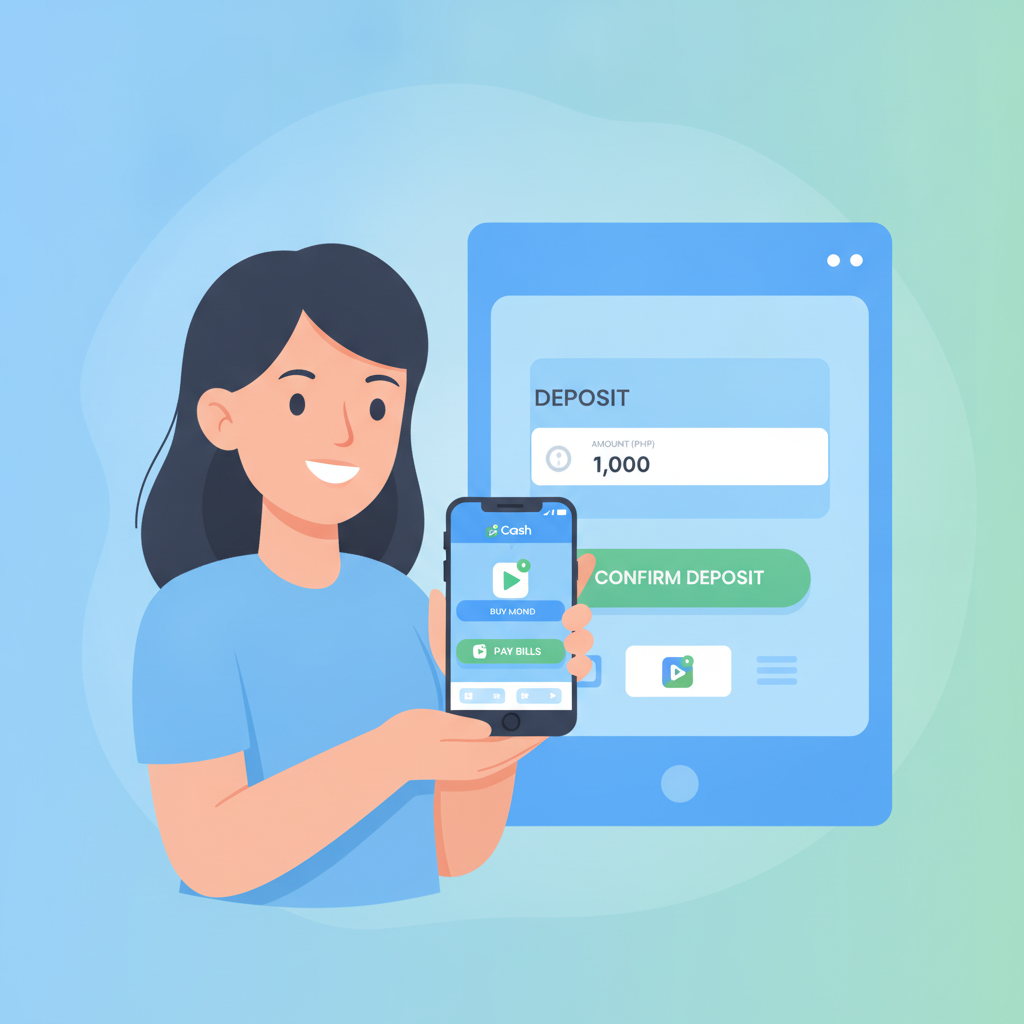
How to Make Your First Deposit on JD Flash Using GCash
Once you've completed your JD Flash register process and verified your ID, you'll need to add funds before you can place bets on PBA games, spin slots, or join live dealer tables. GCash is one of the fastest and most popular ways to deposit pesos into your JD Flash account, especially if you're on mobile.
This guide walks you through every step of making your first deposit using GCash, from finding the right menu after you JD Flash login to confirming the transaction in your GCash app.
Finding the Deposit Section After You Log In
After you complete your JD Flash login, you'll land on the main lobby or homepage. The exact layout may vary slightly depending on whether you're on a mobile browser or desktop, but the deposit function is always easy to reach.
On mobile:
- Look for a button or icon labeled "Deposit," "Cashier," or "Wallet" at the top right corner of the screen. It may appear as a peso sign (₱), a wallet icon, or the word "Deposit" in a bright color.
- Tap the icon to open the cashier page.
On desktop:
- After you log in, check the top navigation bar. You'll typically see "Deposit" or "Cashier" next to your username and account balance.
- Click to proceed to the payment page.
If you're having trouble finding the deposit button, look for your account balance display—the deposit link is usually right beside it. Some platforms also place a "Deposit Now" prompt on the homepage banner when your balance is zero or low.
Once you're in the cashier or deposit section, you'll see a list of available payment methods.
Selecting GCash as Your Payment Method
The cashier page on JD Flash will display several deposit options, typically including GCash, Maya, bank transfer via InstaPay or PESONet, and sometimes over-the-counter channels. For speed and convenience, GCash is a top choice for most Filipino players.
How to select GCash:
- Scroll through the list of payment methods. GCash is usually shown with its blue logo.
- Tap or click the GCash option to select it.
- The page will refresh or expand to show GCash-specific deposit fields.
At this point, you may see a note about processing times. GCash deposits on JD Flash are typically instant or take just a few minutes, so your funds should appear in your account balance almost immediately after confirmation.
Make sure you're logged into your GCash app on the same phone before you continue. You'll need it in a moment to authorize the payment.
Entering Your Deposit Amount (PHP 100 Minimum Typical)
After selecting GCash, you'll see a field asking you to enter the amount you want to deposit. JD Flash sets a minimum deposit, which is commonly PHP 100, though you should check the cashier page for the current limit.
Steps to enter your amount:
- Tap or click the deposit amount field.
- Type in the number of pesos you want to add. For example, if you want to start with PHP 200, enter "200."
- Make sure the amount meets the minimum. If you enter less than the minimum (for example, PHP 50), the system will usually display an error message or prevent you from proceeding.
- Double-check the number before you continue. Once you confirm, the transaction will be sent to GCash.
Tips on choosing your first deposit amount:
- Start with the minimum (PHP 100) if you're new and want to explore the platform without committing a large sum.
- If you plan to try a few slot spins or place multiple small bets on a PBA game, PHP 200–500 gives you more room to play.
- Keep your deposit within your budget. Only deposit money you can afford to set aside for entertainment.
Some players prefer to deposit in round numbers (PHP 100, 200, 500) because it's easier to track spending. Choose what works for your situation.
After entering your amount, look for a button labeled "Continue," "Next," or "Deposit Now." Tap or click it to move to the confirmation screen.
Confirming the Transaction in Your GCash App
Once you submit your deposit request on the JD Flash cashier page, you'll be redirected or shown instructions to complete the payment in your GCash app. The exact flow depends on how JD Flash integrates with GCash, but the process is straightforward.
Typical steps:
- You'll receive a prompt or notification. This might be an automatic redirect to the GCash app (if you're on the same phone), a QR code to scan, or a payment request that appears in your GCash notifications.
- Open your GCash app. If the app doesn't open automatically, launch it manually from your home screen.
- Review the payment details. You'll see the amount you're paying, the recipient (JD Flash or its payment processor), and a reference number. Check that the amount matches what you entered on the JD Flash cashier page.
- Enter your GCash MPIN. GCash requires your four- or six-digit MPIN to authorize the transaction. Type it in carefully.
- Confirm the payment. Tap "Confirm," "Pay Now," or a similar button.
- Wait for the success message. GCash will display a confirmation screen showing the transaction was successful. You may also receive an SMS from GCash confirming the deduction from your wallet balance.
What happens next:
- In most cases, your JD Flash account balance will update within seconds. You'll see the deposited amount added to your wallet on the JD Flash homepage or cashier page.
- If the deposit doesn't appear immediately, wait a few minutes and refresh the page. Occasionally, there may be a short delay during peak hours or if there's a temporary connectivity issue.
- If more than 10 minutes pass and the funds still haven't appeared, take a screenshot of your GCash confirmation and contact JD Flash customer support through live chat or email. Keep your transaction reference number handy.
Important reminders:
- Make sure your GCash wallet has enough balance to cover the deposit amount. If your GCash balance is too low, the transaction will fail, and you'll need to cash in to your GCash account first (via bank transfer, 7-Eleven, or other cash-in channels).
- Only use your own GCash account. JD Flash requires that the name on your GCash account matches the name on your JD Flash account. Using someone else's e-wallet can cause verification problems and delays.
- Keep your GCash MPIN private. Never share it with anyone, including people claiming to be from JD Flash or GCash support.
Once your balance updates, you're ready to play. You can start spinning slots, placing bets on NBA or PBA games, joining live dealer tables, or trying bingo and keno—whatever caught your eye when you first decided to sign up.
21+ and Responsible Gambling Reminder
JD Flash is strictly for players aged 21 and over. Online gambling is meant to be a form of entertainment, not a way to make money or solve financial problems.
Before you start playing, keep these points in mind:
- Set a budget for each session and stick to it. If you deposited PHP 200, decide in advance how much you're willing to spend, and stop when you reach that limit.
- Don't chase losses. If you're on a losing streak, take a break instead of depositing more money in hopes of winning it back.
- Use the deposit limits and session reminders if JD Flash offers them in your account settings. These tools can help you stay in control.
- If you ever feel that gambling is becoming a problem—affecting your finances, relationships, or mental health—seek help. Organizations like the National Center for Mental Health in the Philippines offer confidential support.
Gambling should be fun and recreational. Play responsibly, and never bet more than you can afford to lose.
Summary
Making your first deposit on JD Flash using GCash is a quick process: log in, find the cashier section, select GCash, enter your deposit amount (usually a PHP 100 minimum), and confirm the payment in your GCash app. Your account balance should update within seconds, and you'll be ready to explore slots, live dealer games, sports betting, and more.
Always double-check the amount before confirming, use only your own GCash account, and keep your MPIN secure. Most importantly, play responsibly and within your budget.
This guide is written for informational purposes by an independent site. JD Flash operates its own platform, and players should verify current deposit limits, payment methods, and terms directly on the JD Flash site after they log in. Remember: you must be 21 or older to play, and gambling should remain a fun, controlled activity.