JD Flash Login Guide: Accessing Your Account on Mobile & Desktop
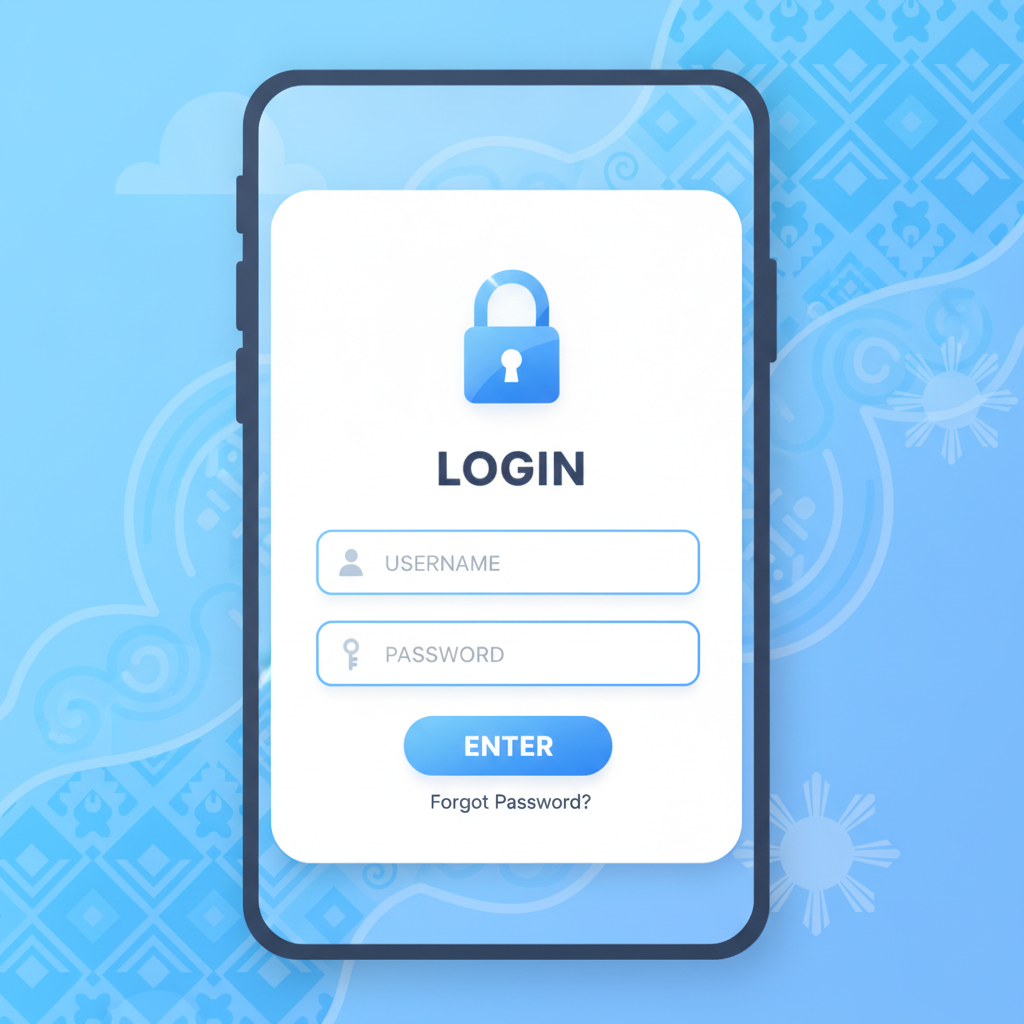
JD Flash Login Guide: Accessing Your Account on Mobile & Desktop
Once you've created your JD Flash account, logging in is the first step every time you want to place a bet, spin a slot, or check your balance. This guide walks you through the JD Flash login process on both mobile and desktop, explains what to do when you can't get in, and covers basic security practices to protect your account.
Where to Find the JD Flash Login Page on Phone and Computer
Logging In on Mobile (Android)
Most Filipino players access JD Flash on their Android phones. To reach the login page:
- Open your mobile browser (Chrome, Firefox, or your preferred app)
- Type the JD Flash website address into the URL bar or tap your saved bookmark
- On the homepage, look for the Login button in the top-right corner of the screen
- Tap the button to open the login form
The login button is usually visible as soon as the page loads. If you're on a smaller screen, you may need to tap a menu icon (three horizontal lines) first to reveal the login option.
Some players save the login page as a home-screen bookmark for faster access. To do this, open the login page in Chrome, tap the three-dot menu, and select "Add to Home screen."
Logging In on Desktop or Laptop
If you're using a computer:
- Open your web browser and navigate to the JD Flash website
- The Login button appears in the top-right corner of the homepage
- Click the button to bring up the login fields
The desktop layout is similar to mobile, but the login form may appear as a pop-up overlay or on a separate page depending on your screen size.
Entering Your Username and Password Correctly
After clicking or tapping the login button, you'll see two input fields:
- Username or Mobile Number: Enter the username you chose during JD Flash registration, or the mobile number you linked to your account
- Password: Type your password exactly as you set it up
Common Entry Mistakes
- Case sensitivity: Passwords are case-sensitive. If you used capital letters, make sure Caps Lock isn't accidentally on.
- Extra spaces: Don't add spaces before or after your username or password. Copying and pasting sometimes adds invisible spaces.
- Incorrect username format: If you registered with your mobile number, include the country code if prompted (e.g., +639 followed by your number).
Double-check each character before tapping or clicking the Login or Sign In button. If your credentials are correct, you'll land on your account dashboard where you can see your balance, access games, and manage deposits.
What to Do If You Can't Log In
If JD Flash won't let you in, here are the most common reasons and how to fix them.
Forgot Your Password
This is the most frequent login issue. To reset your password:
- On the login page, look for a Forgot Password? or Reset Password link below the password field
- Tap or click the link
- Enter the mobile number or email address you used when you signed up for JD Flash
- JD Flash will send a password-reset link via SMS or email (usually within a few minutes)
- Open the message, tap the link, and follow the instructions to create a new password
- Return to the login page and sign in with your new password
Make sure you have access to the mobile number or email on file. If you changed your SIM card or no longer use that email, you may need to contact JD Flash customer support for help.
Account Locked or Suspended
If you see a message saying your account is locked, it may be due to:
- Multiple failed login attempts in a short period
- A security flag on your account
- Incomplete ID verification
Wait 15–30 minutes and try again. If the problem continues, reach out to JD Flash support through live chat or the contact options on the website.
Browser or Connection Issues
Sometimes the problem isn't your password:
- Clear your browser cache: Old cached data can interfere with login forms. In Chrome on Android, go to Settings > Privacy > Clear browsing data.
- Check your internet connection: Switch between mobile data and Wi-Fi to see if the issue is network-related.
- Try a different browser: If Chrome isn't working, test Firefox or another browser.
- Disable VPN or proxy: Some VPNs can block access to online casino sites in the Philippines.
Still Can't Log In?
If none of the above steps work, contact JD Flash customer support. Have your registered mobile number and username ready to verify your identity.
Keeping Your JD Flash Login Secure
Protecting your account starts with good login habits. JD Flash holds your peso deposits and personal information, so security matters.
Choose a Strong Password
When you first register on JD Flash or reset your password:
- Use at least 8 characters
- Mix uppercase and lowercase letters, numbers, and symbols
- Avoid obvious choices like "password123" or your birthday
- Don't reuse passwords from GCash, Maya, or your bank accounts
Never Share Your Login Details
JD Flash will never ask for your password by email, SMS, or social media. If someone claiming to represent the platform requests your login, it's a scam.
Don't share your username and password with friends or family, even if they want to "check something" on your account.
Log Out When You're Done
Especially on shared or public devices:
- Tap your account icon or username in the top corner
- Select Log Out from the menu
- Confirm you're logged out by checking that the homepage shows the login button again
Logging out prevents anyone else from accessing your balance or placing bets on your behalf.
Device Security Tips
- Lock your phone: Use a PIN, pattern, or fingerprint lock on your Android device.
- Avoid public Wi-Fi: Logging in over unsecured public Wi-Fi at cafés or malls can expose your credentials. Use mobile data or a trusted private connection.
- Keep your browser updated: Browser updates include security patches that protect your login information.
- Watch for phishing links: Only visit the official JD Flash website. Scam sites with similar names may try to steal your password.
Enable Two-Factor Authentication (If Available)
Some online platforms offer two-factor authentication (2FA) via SMS. If JD Flash adds this feature, turn it on in your account settings. It adds an extra layer of security by requiring a one-time code sent to your phone each time you log in.
JD Flash Login: Quick Troubleshooting Checklist
Before contacting support, run through this list:
21+ and Responsible Gaming Reminder
JD Flash is only for players aged 21 and above. Online betting should remain a form of entertainment, not a way to solve financial problems or chase losses.
If you find yourself logging in more often than planned, spending more than you can afford, or feeling stressed about your account balance, take a break. Set deposit limits in your account settings, use session reminders, or reach out to a responsible-gambling support service in the Philippines.
Never share your login with minors, and always log out on shared devices to prevent unauthorized access.
Final Tips: Bookmark the JD Flash login page on your phone for quick access. Write down your username (not your password) somewhere safe if you think you might forget it. And remember: keeping your login secure protects both your money and your personal data.
This guide is provided by JD Flash Guide PH, an independent resource for Filipino players learning how to use the platform. For official support, always contact JD Flash directly through their website.